
How to Build a Custom Tax Binder for Every Client With an AI Agent
Ask ten tax firms how they build a client binder and you will hear ten answers. One opens with the engagement letter. Another starts with the organizer and ends with last year's return. Each order is that firm's review standard.
Then the client's documents arrive as separate files. Before anyone prepares the return, someone splits, renames, and reorders PDFs by hand, client after client.
Custom Binders is now available in Instead. You tell the agent the binder your firm wants, in plain words, and it builds one PDF from the client's documents in Tax docs. This guide follows one binder build, step by step.
Short answer: In Instead, you describe your firm's binder order to the agent, and it builds one bookmarked PDF from the client's documents.
Why every firm's tax binder is different
Every firm's tax binder is different because the binder is how that firm reviews a return, written down as a page order.
A binder is a completeness check, a review path, and the record behind the return. The IRS puts the duty plainly on its How long should I keep records? page. "Generally, you must keep your records that support an item of income, deduction or credit shown on your tax return until the period of limitations for that tax return runs out."
An agent can work in your order, because the binder starts from your instruction, not someone else's template. And a return is only as accurate as the documents behind it, a point we made in what makes AI tax software accurate.
How to build a custom tax binder in Instead
You build a custom tax binder in Instead by putting the client's documents in Tax docs, telling the agent the binder you want, and checking the result.
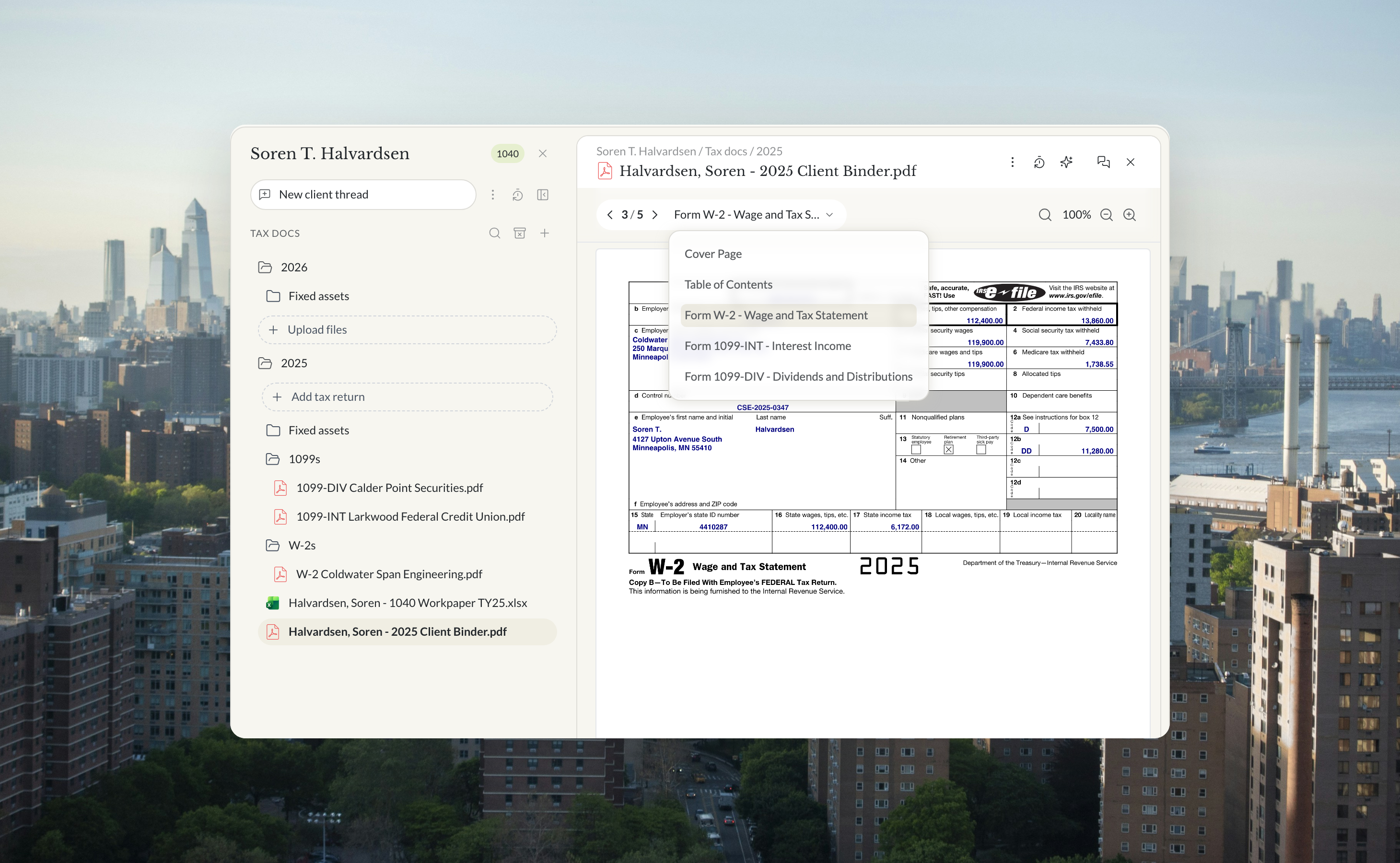
The screenshots in this guide follow Soren T. Halvardsen, a fictional client. His 2025 folder holds three source documents, a Form W-2 from his employer, a Form 1099-INT from his credit union, and a 1099-DIV from his brokerage account.
- Put the documents in Tax docs. Upload the client's files to the year folder.
- Write the binder instruction. Name the order, the front pages, the bookmarks, and the folder.
- Let the agent build it. It combines the files into one bookmarked PDF.
- Check the binder. Open the bookmarks and the contents page.
- Ask for reviewer marks as their own step. Name the page, the box, and the note.
- Save the instructions as a workflow. Keep your standard for the next binder.
The agent works from the client's Tax docs, as on a 1040 return, from intake to e-file.
Writing the binder instruction for the agent
The binder instruction is your firm's binder order written as a request, with the order, the front pages, and the folder spelled out.
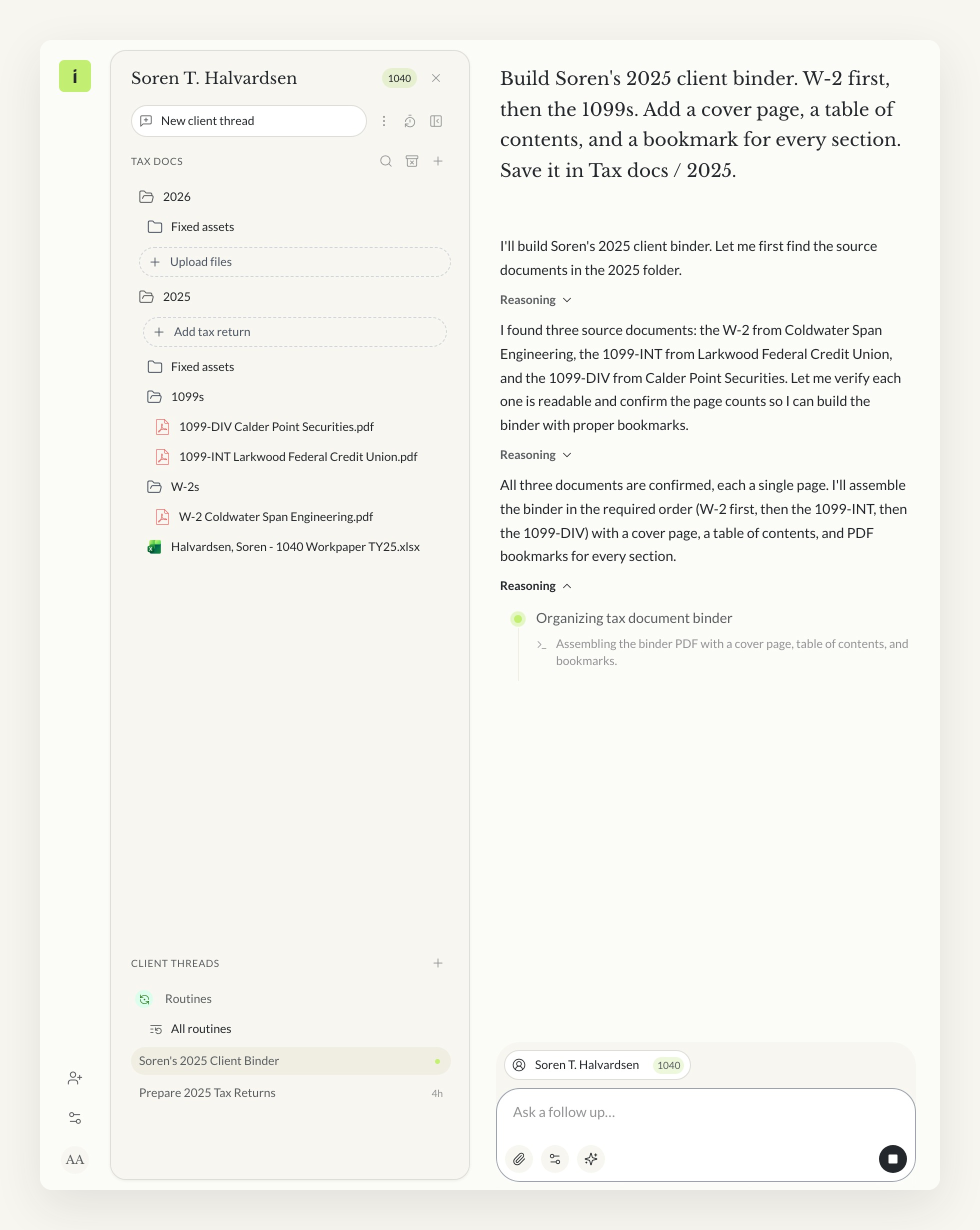
Here is the instruction typed in Soren's thread, word for word.
Build Soren's 2025 client binder. W-2 first, then the 1099s. Add a cover page, a table of contents, and a bookmark for every section. Save it in Tax docs / 2025.

It does not name the file, so the agent named it after the client and the tax year. If your firm has a naming standard, put the file name in the instruction.
When the binder looks right, save the instructions as a workflow, a saved set of instructions the agent can follow. See how AI tax orchestration works in Instead.
Following the agent's work in the client thread
While it builds the binder, the agent reports each step in the same thread.
In Soren's thread, it found his W-2 from Coldwater Span Engineering, his 1099-INT from Larkwood Federal Credit Union, and his 1099-DIV from Calder Point Securities. It confirmed each was readable and a single page, set the order the instruction asked for, and started assembling the PDF.
The agent asks before it moves files. It first saved the binder in the 2026 folder, said so, and asked to move it to 2025. After a click on Allow this time, it moved the file, and the agent's final reply opened with "Soren's 2025 client binder is built and saved in Tax docs / 2025."
What the agent puts in the tax binder
The finished tax binder is one PDF with every file in your order, a cover page, a table of contents, and a bookmark for each section.
Soren's binder is a five-page PDF. Page one is the cover, page two is the table of contents, and pages three to five are the W-2, the 1099-INT, and the 1099-DIV. The section menu at the top of the viewer lists five bookmarks, one for the cover, one for the contents, and one for each form.
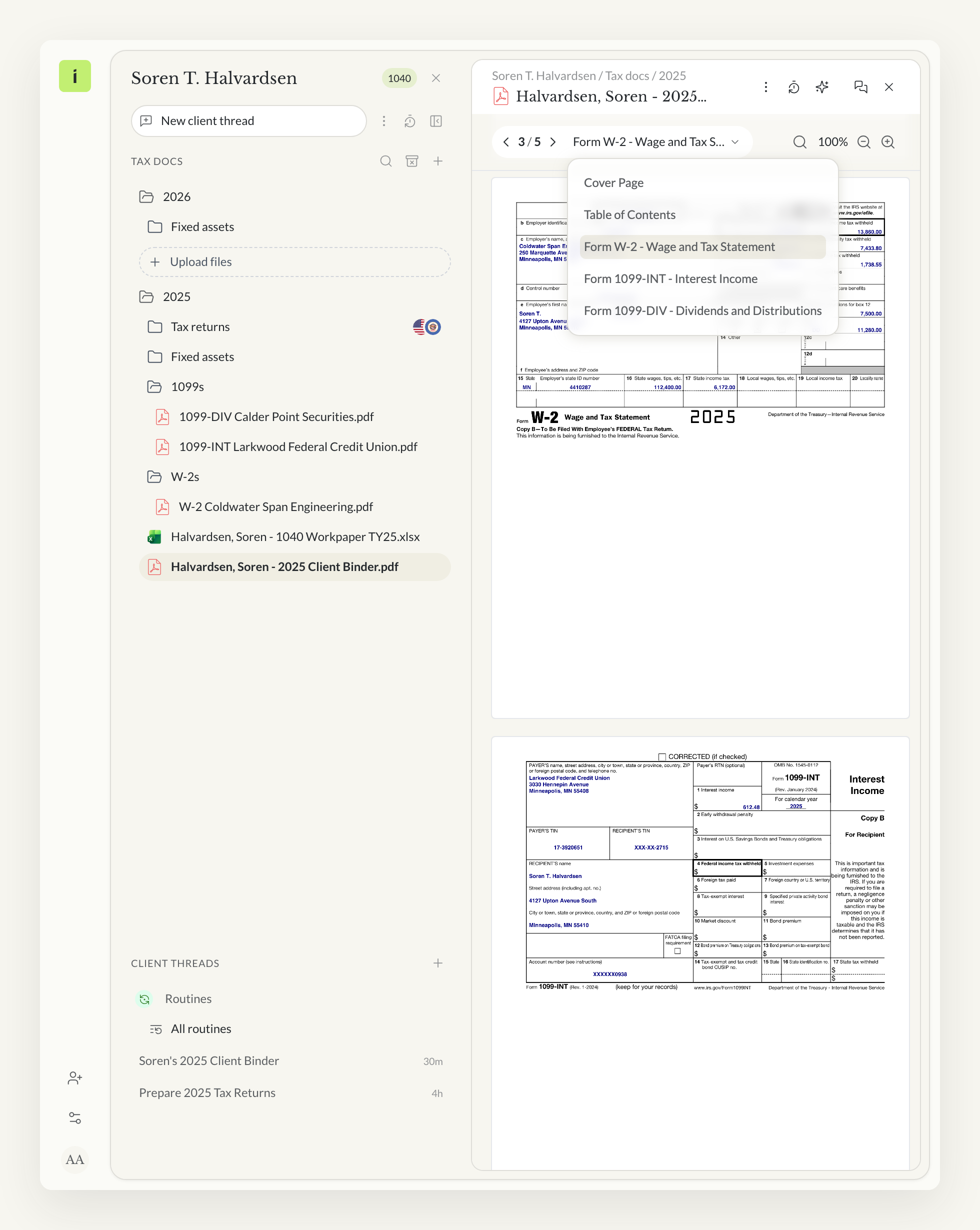
The table of contents lists each form with its payer and first page. Its lines are not links. The bookmarks are what jump.
The instruction only said "Add a cover page". The agent filled it with Soren's name, address, and tax year, the firm's name, and the date. Check that text before the binder goes to a client.
| Binder part | What the agent does | What your team checks |
|---|---|---|
| Document order | Combines the files into one PDF in your order | The order matches your standard |
| Scanned documents | Splits a scan into separate PDFs, named by what each is | Each file is what its name says |
| Cover page | Adds a cover page with the client's name, the tax year, and your firm's name | The name, the year, and the firm |
| Table of contents | Lists each document with its first page | The page numbers match |
| Bookmarks | Adds a bookmark for every section | Each bookmark opens the right page |
| Reviewer marks | Draws marks on the pages you name, as their own step | Where each mark sits |
Adding reviewer tick marks and notes to a binder
You add reviewer marks by asking for them as their own step, after the binder exists, and naming the page, the box, and the note.
Marks are drawn on the page itself, not added as editable comments. Soren's binder has none, because his instruction did not ask for any. Check where each mark sits before anyone relies on it.
For the review itself, see how AI tax return review works in Instead. For K-1s, see how 1065 filing works with Instead.
Downloading the tax binder with its bookmarks
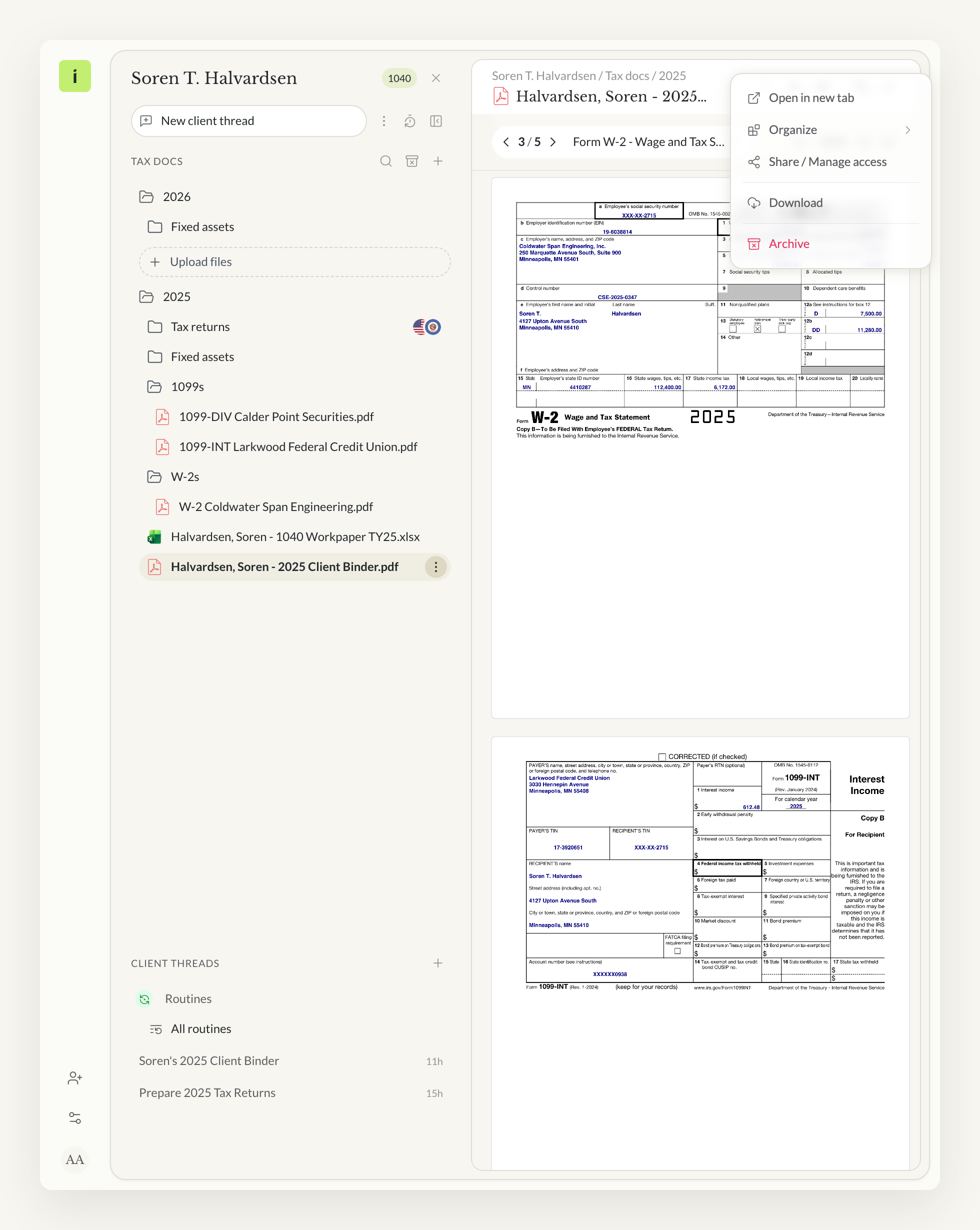
You download the tax binder from the file's menu, and the bookmarks come with it.
Open the file's menu at the top of the viewer and choose Download. The agent saves the binder to the client's folder and does not send it anywhere. In a standard PDF viewer, the bookmarks panel lists every section.
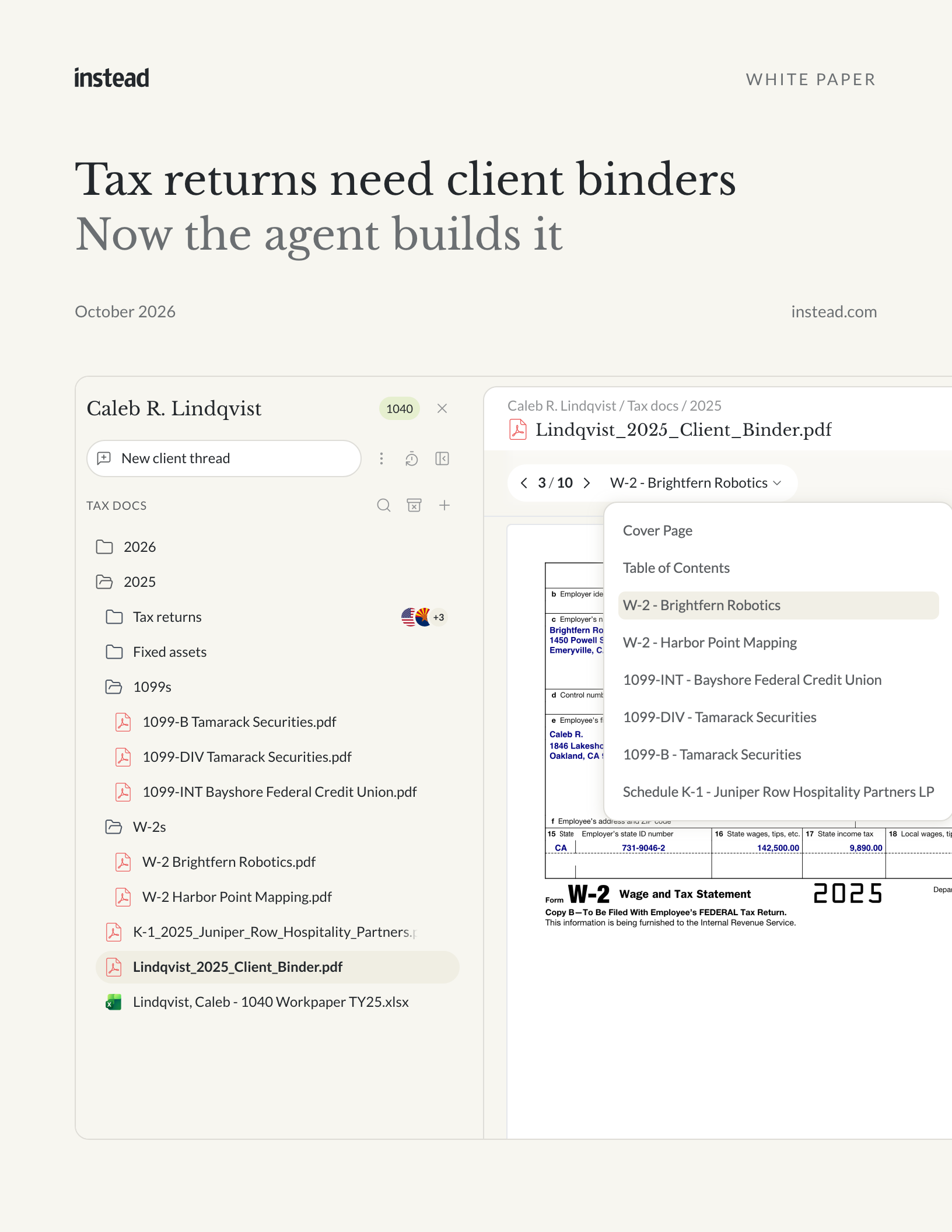
How the agent turns multiple PDFs into one client binder in your firm's order, and what your team still checks.
Download the white paper (PDF)What to ask before you automate client binders
Before you hand binder assembly to any AI tool, ask how it handles your order, your documents, and your review.
Questions to ask before you commit:
- Will the tool build the binder in our firm's order, or only in a fixed template?
- Can it split a scan that holds several documents, and how does it name the files?
- Do the bookmarks still work when we download the PDF and open it in a standard viewer?
- Where does the finished binder live, and does the tool send it anywhere?
- Who at our firm can change the binder standard once it is saved?
For more, see what to ask an AI tax vendor before tax season.
How would a custom tax binder work at your firm?
The Instead AI tax platform keeps a client's documents, the agent, and the return in one workspace, so the binder and the review start from the same files.
To see it on your own clients' documents, start your trial.
Frequently asked questions
Q: What is a custom tax binder?
A: A custom tax binder is one PDF of a client's tax documents in the order your firm uses, with a cover page, a table of contents, and bookmarks. In Instead, the agent builds it from the files in Tax docs, in the order you describe.
Q: Can each partner group use its own binder order?
A: Yes, each partner group can use its own binder order. The agent follows the order in the instruction, so a group can write its own and save it as its own workflow. Check who at your firm can see and edit shared workflows.
Q: Does the table of contents link to each document?
A: No, the table of contents does not link to each document. It lists every document with the page it starts on, so a reviewer can see the order at a glance. The bookmarks are what jump, in the Instead viewer and in the downloaded PDF.
Q: Can I change a reviewer mark later?
A: Yes, you can change a reviewer mark later by asking the agent for a new marked version. Marks are drawn onto the page, so they are not comments you can edit or reply to. Check where each new mark sits.
Q: Does the agent file or send the binder anywhere?
A: No, the agent does not file or send the binder anywhere. It saves one PDF to the client's Tax docs folder, where your team can review it. Download a copy from the file's menu, and the bookmarks come with it.
Q: What file types can go into a custom tax binder?
A: PDF files go into a custom tax binder. The agent combines multiple PDFs from the client's Tax docs folder into one bookmarked file, in the order you give it. Convert Word documents to PDF before you ask for the binder, so every document can take its place.

How AI Tax Orchestration Works in Instead

.png)

What to Ask an AI Tax Vendor Before Tax Season

How AI Tax Return Review Works in Instead


.png)