
The tax year's review in one PDF
A tax return review runs across many files. The source documents sit in one place and the return in another. The reviewer goes back and forth to see where a number came from.
New in Instead, the client binder puts the whole tax year in one linked PDF.
Short answer: The client binder is one linked PDF of the tax year. A contents page lists the source documents, grouped by type, and each return. Bookmarks mark each source document and each form under its return. A tick and tie table numbers each tie. Each tick links a number on the return to the page it came from.
How firms run tax return review across preparers, reviewers and partners
The preparer builds the return from the source documents. The reviewer checks the return against them. The partner looks at the return before it goes out. Each of them asks the same question of a line on the return. Where did this come from?
When the documents and the return sit in separate files, that answer takes a search. The client binder puts them in one file and links them. Built for the review, the preparer, the reviewer and the partner work from one file. Read more about tax return review in Instead.
What is in the Instead client binder
The binder is one PDF for one client and one tax year. The examples below come from our demo binder for a fictional client, Nathaniel & Corinne Ashgrove, at a demo firm, Rainwater CPA. It has 156 pages, 37 bookmarks and 40 ticks.
A contents page
A contents page lists the source documents, grouped by type, and each return, with the page each one starts on. In the demo binder, the source documents are a 2024 return as filed, under Prior year returns, and a W-2, under Wages. The returns are the Federal 1040 on page 115 and the New York State IT-201 on page 153.
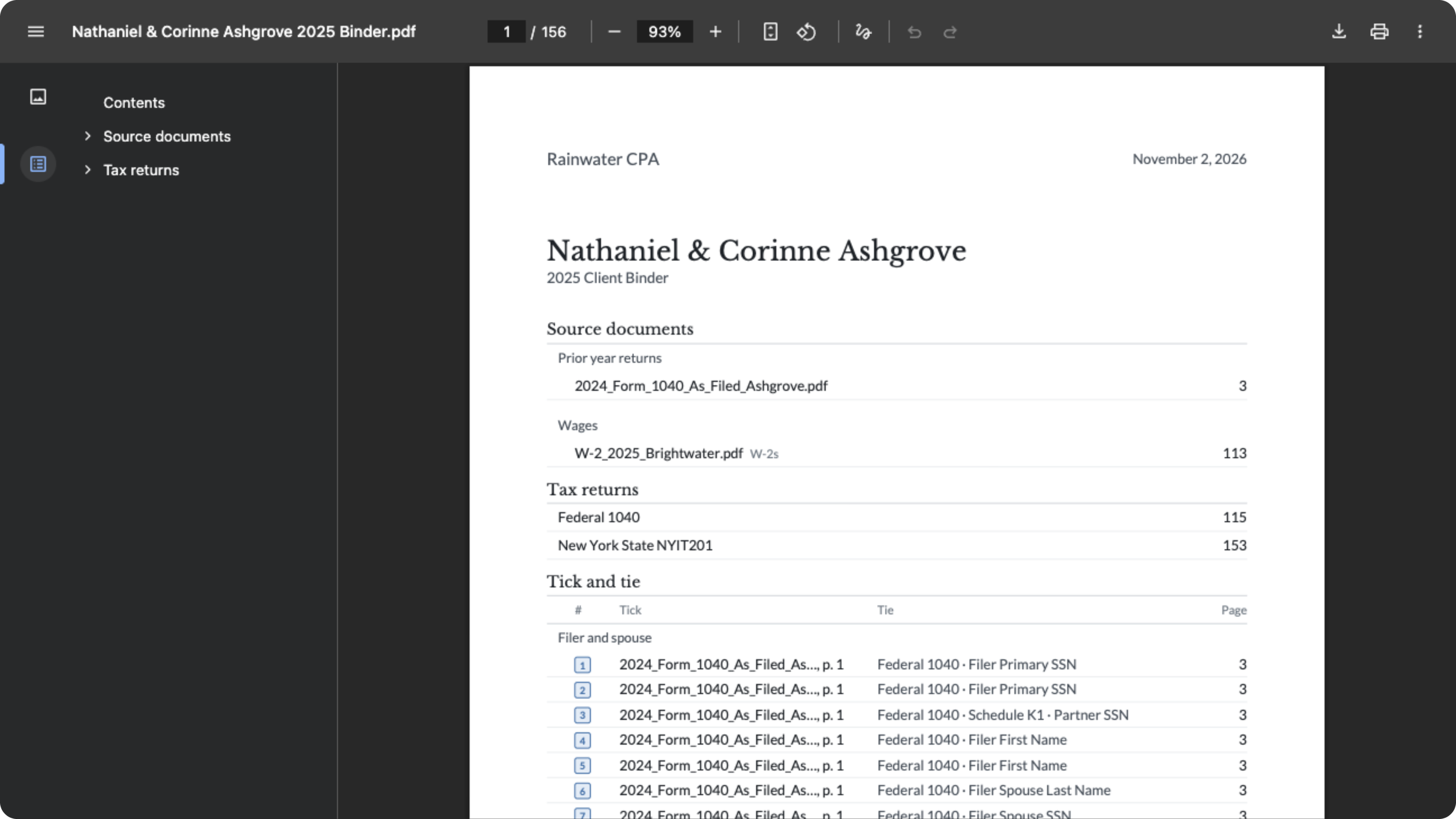 The contents page, with the bookmark panel open
Bookmarks for each document and each form
The binder has bookmarks for each source document, and for each form under its return. In the bookmark panel of a PDF viewer, the Federal 1040 opens to Form 1040, Schedules 1, 2, 3, A, B, D and E, and Forms 8949, 1116, 8959 and 8960, with the worksheets and summaries after them.
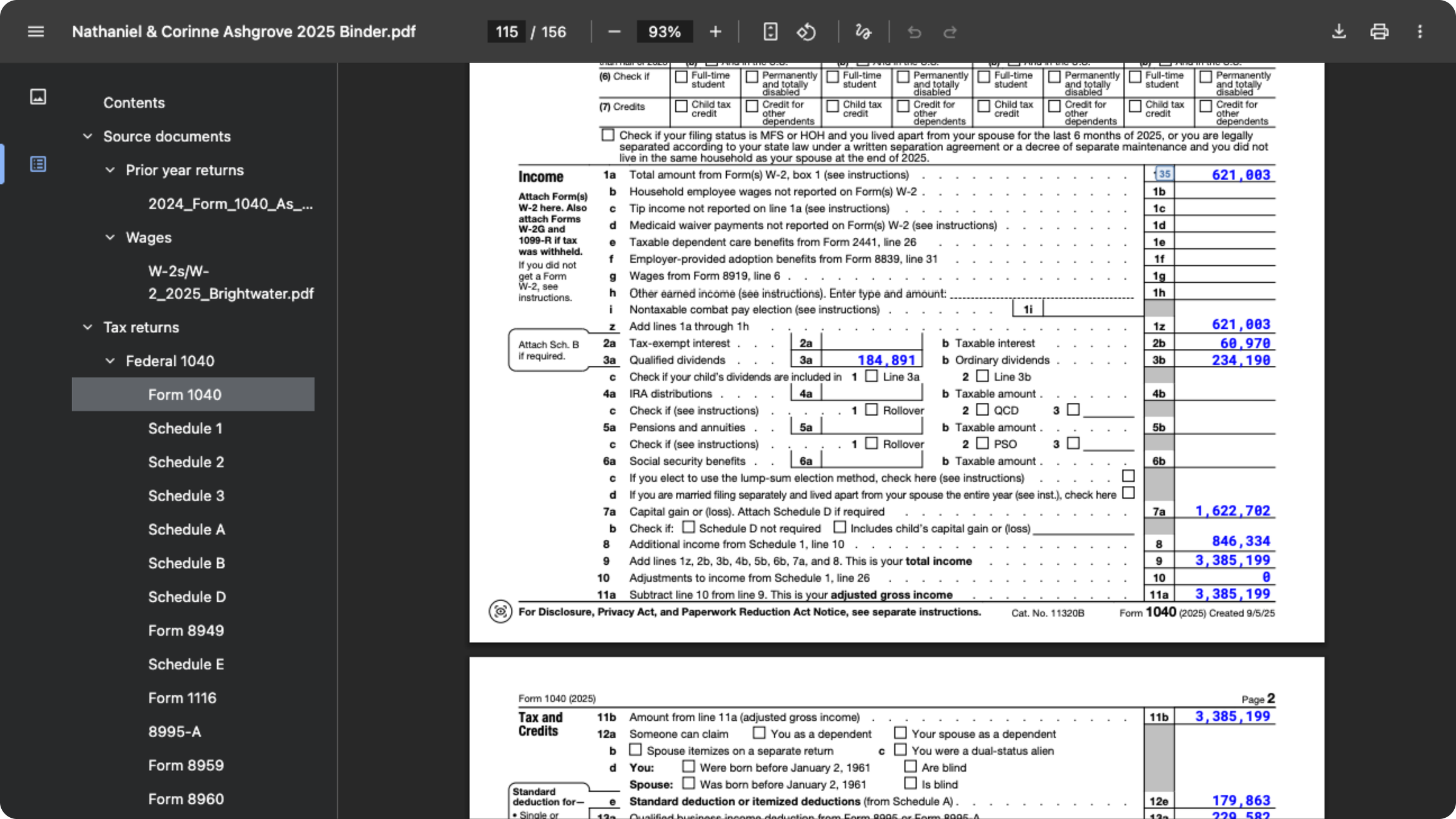 The Form 1040 bookmark opens the return
A tick and tie table
A tick and tie table numbers each tie: the source document, the return field and the page. The 40 ticks in the demo binder are grouped by topic. The groups are filer and spouse, address and contact, filing status and elections, wages and salaries, capital gains and losses, and payments and withholding.
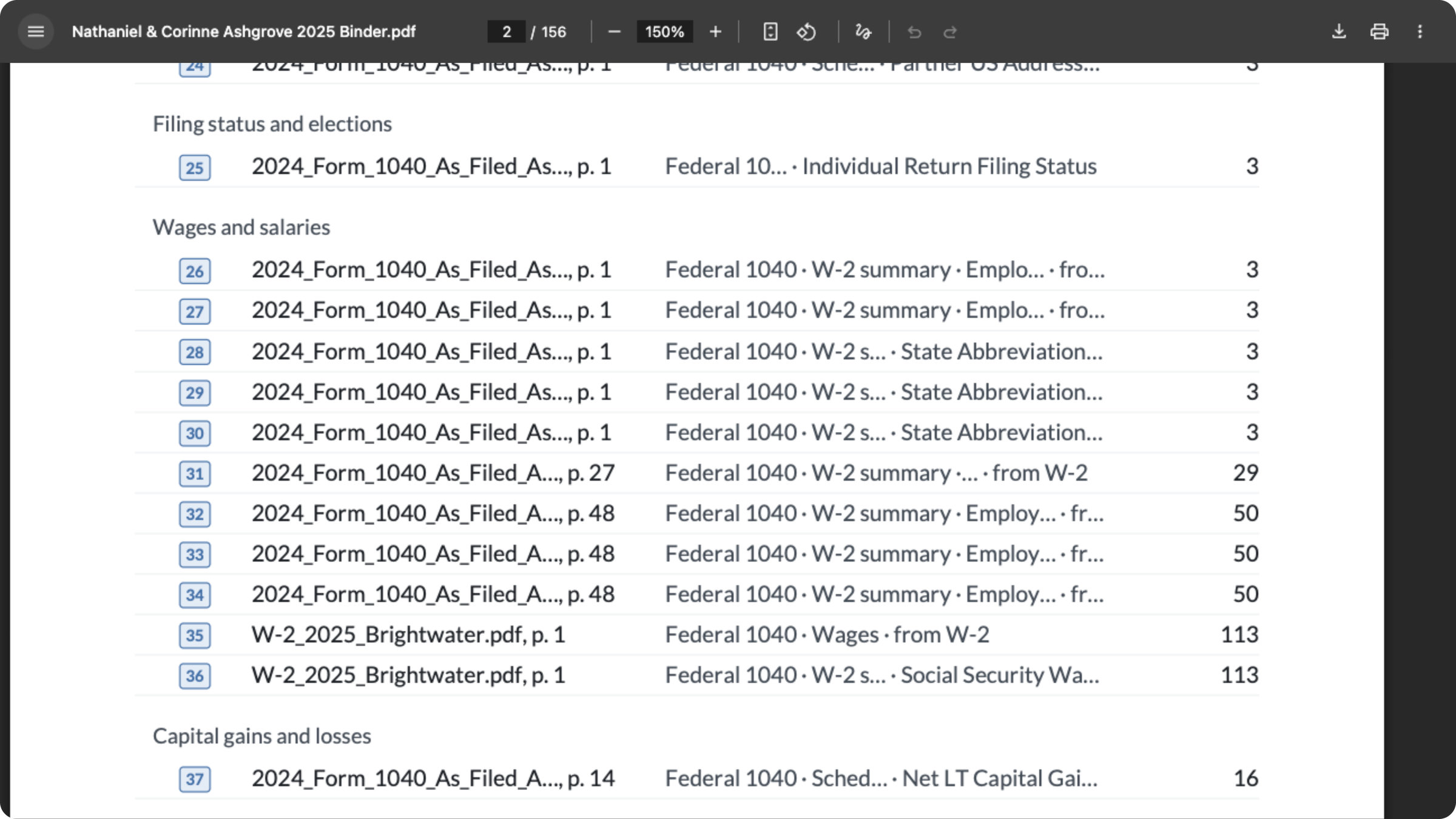 The tick and tie table, wages and salaries group
How the tick and tie connects the return to its source documents
Each tick links a number on the return to the page it came from. Click a tick on the return to jump to the source document. The same tick marks the box it came from.
Tick 35, from line 1a to the W-2
In our demo binder, tick 35 on line 1a of the Form 1040 opens the W-2. Box 1 carries tick 35. In the tick and tie table, row 35 names the W-2, page 1, and the tie to Federal 1040 wages, on page 113.
 Line 1a of the Form 1040 carries tick 35
Box 1 of the W-2 reports wages, tips and other compensation. The IRS page About Form W-2 has the form and its instructions.
 Box 1 of the W-2 carries the same tick
A link, not a sign-off
The tick shows the reviewer where to look. It does not decide whether a number is right. The reviewer still compares the line with its source and makes the call.
How to download the client binder in Instead
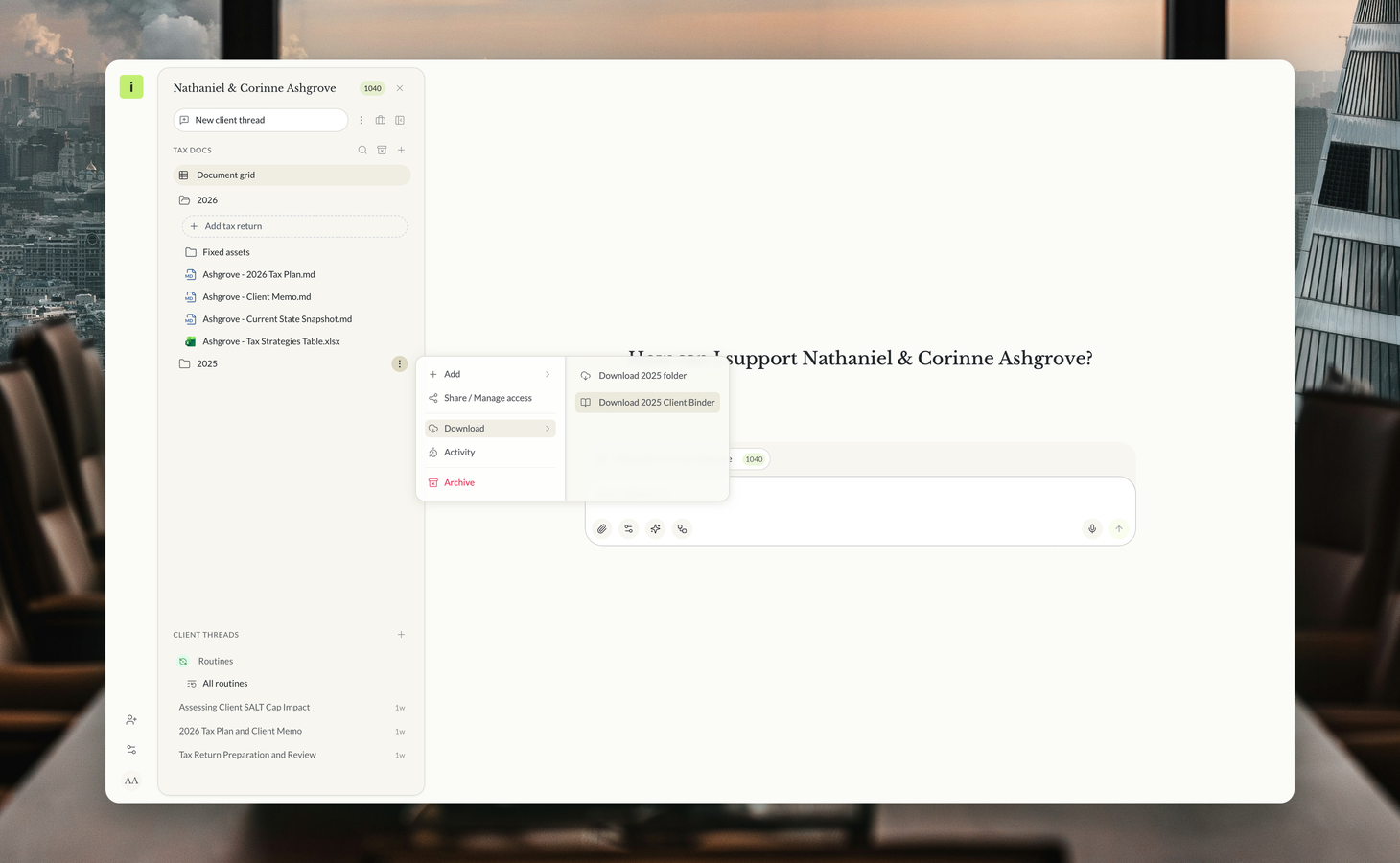
Open the menu on the tax year folder. Click Download, then Download 2025 Client Binder. The binder downloads as one PDF, named for the client and the year.
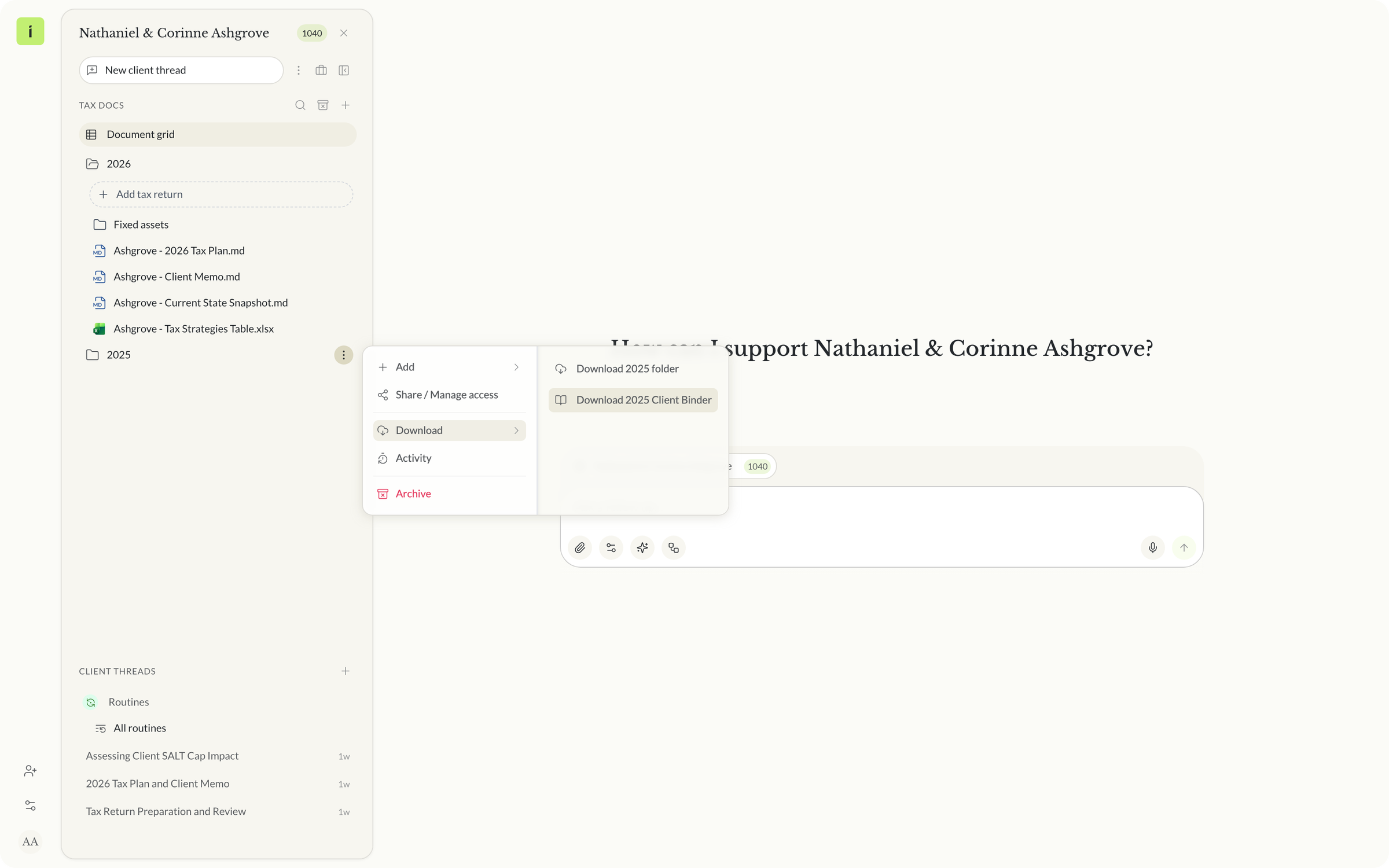 Download, then Download 2025 Client Binder
Need a binder built to your own outline instead? Our earlier post shows how to build a custom tax binder with an AI agent.
A tax workpaper review workflow built on one file
One file gives each person in the review the same starting point.
- Preparer. Open the contents page and confirm the source documents and returns are all there. Then spot-check the ties in the table.
- Reviewer. Work down the tick and tie table. Click from a line on the return to its source page and back.
- Partner. Open the return from its bookmark. Follow the ticks on the lines that matter most for this client.
What to ask before you commit to a tax return review tool
These questions test any review setup on your own clients.
Questions to ask before you commit:
- Can I see the return and its source documents in one file?
- Does each form of the return have its own bookmark?
- Can I click from a line on the return to the page it came from?
- Does the source page show the same tick, so I can go back?
- Can the preparer, the reviewer and the partner work from the same file?
One linked file carries the tax year review
On the Instead AI tax platform, the client binder puts the source documents, the returns and the ties for the tax year in one linked PDF.
Free white paper
The tax year’s review in one PDF
The client binder page by page, the tick and tie method and a review workflow
What the client binder contains, a page by page walk of a demo binder, tick 35 from line 1a to the W-2, and a review workflow. Free PDF.
Download the white paperTo try it on your own clients, start your trial at instead.com.
Frequently asked questions
Q: What is the client binder in Instead?
A: It is one linked PDF of a client's tax year. A contents page lists the source documents, grouped by type, and each return. Bookmarks mark each source document and each form under its return. A tick and tie table numbers each tie between the return and the source documents.
Q: How do I download a client binder?
A: Open the menu on the tax year folder in the client's tax docs. Click Download, then the Client Binder item for that year, for example Download 2025 Client Binder. The binder downloads as one PDF, named for the client and the year, and opens on its contents page.
Q: What does a tick in the binder mean?
A: A tick is a numbered link between a number on the return and the page it came from. Click a tick on the return to jump to the source document, where the same tick marks the box. In our demo binder, tick 35 on line 1a of the Form 1040 opens the W-2.
Q: Does the tick and tie table check that the amounts agree?
A: No. A tick links a line on the return to its source, so the reviewer knows where to look. It does not decide whether a number is right. The reviewer still compares the line with the source document and makes the call, as in any review.
Q: Which bookmarks does the binder include?
A: The binder has bookmarks for each source document, grouped by type, and for each form under its return. In our demo binder, the Federal 1040 lists Form 1040, its schedules and forms, and the worksheets and summaries. The New York State return has its own bookmark.
Q: Who is the client binder for?
A: It is built for the review. The preparer checks that the source documents and returns are in the file. The reviewer works through the tick and tie table. The partner opens the return from its bookmark and follows the ticks. Everyone works from one file.

Who changed this number? Activity in Instead

Instead remembers every client

How to build custom workflows for your tax firm with an AI agent


Ask any question across all your clients


