
Your review process, enforced

Most firms have a review rule. A preparer finishes a return, a reviewer checks it, and a partner signs off. The rule usually lives in a checklist, and a checklist cannot stop a return from going out. Sign-off levels in Instead put the rule inside the return, on each field and on the return itself.
Short answer: Sign-off levels let a firm set how many approvals a tax return needs, from one to three. Each team member holds a level. Reviewers sign off on single fields and on the return at their level, and each sign-off records its level. Instead does not send the return for signature or e-file it until the required level signs off.
How sign-off levels work in Instead
The firm owner sets how many approvals a return needs. Each team member holds one approval level. Every sign-off carries the level of the person who gives it, on a single field and on the whole return.
A higher level covers the levels below it, so a partner at Level 2 can clear a return that needs Level 2 alone. There is no fixed order. The return cannot go out until the required level signs off.
Set the number of approvals for your firm
In Firm settings, under Tax return filing, the "Approvals" row reads "Approvals a tax return needs before it can be sent for signature or e-filed." Pick None, or one, two or three checks. The setting applies to every return in the firm.
If nobody on the team holds the level yet, Instead says so in red, so the rule never blocks work without a way through.
 Set the levels.
Give each team member an approval level
Click "Set team levels" to open Team settings. Each member shows a small pill, L1, L2, L3 or None. Owners set the levels, and a member cannot change their own.
A member set to None can still check fields inside a return, but cannot verify a return. Owners without an explicit level hold the top level of the firm.
 Give each person a level.
Sign off on single fields inside the return
Open a return in the Inputs view and open the review card of a field. The card has Verify and Flag at the top and the trail of the field below. Click Verify and the button reads Verified. Your sign-off carries your level, and the trail records it.
To check many fields in a row, pick Verify in the review bar at the bottom of the form. Its tooltip reads "Rapid click fields to verify". Each click signs off one field at your level, and the field gets a green outline and a check tag.
 Sign off on each field.
How levels show on a field
When a Level 2 reviewer opens a field that already has a Level 1 sign-off, the Verify button previews the double check before the click. After the click the trail adds "Verified this field · Level 2" above "Verified this field".
The trail keeps both rows, each with who and when. Open the card of a field to see which levels signed off. A reviewer cannot take back a check above their own level. Field checks show the review work. The sign-off on the return is what lets it go out.
 Each level is recorded.
Sign off on fields on the face of the PDF
The same review works on the return PDF. Switch the toolbar from Inputs to PDF, right-click a field on the form page, and its review card opens. Click Verify and the button reads Verified. Close the card and the field turns green on the face of the PDF.
The level shows in the card, not on the PDF. A Level 2 sign-off adds "Verified this field · Level 2" above "Verified this field" in the trail, and the field keeps the same green. To verify many fields on the form, pick "Rapid click fields to verify" and click each field in a row.
 Sign off on the PDF.
Sign off on the return at your level
Each return has its own row in the Tax returns sidebar. Hover the row and click the check to open "Verify this return". The dialog states the rule of the firm and what your sign-off covers.
After a Level 1 sign-off the row shows one check, and its tooltip shows that Level 2 is still needed. After the Level 2 sign-off it shows two.
 Sign off on the return.
How the e-file and e-signature gate works
Until every return in the filing has the required sign-off, "Transmit electronically" stays disabled. Its tooltip reads "Every return needs Level 2 approval before transmitting."
The request for the signature of the client is held the same way. The client is never asked to sign a return the firm has not approved.
 The return waits.
Federal and state returns each need approval
A filing with a federal return and three state returns shows four rows in the Approvals step of the Filings tab. Each row needs its own sign-off at the required level.
 Two checks on each return row.
What to ask before you set sign-off levels
Start with the review your firm already does. These questions help you pick the number of levels and who holds them.
Questions to ask before you commit:
- How many people must approve a return before your client sees it?
- Who on your team should be able to clear a return alone?
- Which fields does a reviewer always check, and at which level?
- Does each state return get the same review as the federal one?
- What stops a return from going out early today?
Your review rule belongs inside the return
Sign-off levels are rolling out to Instead firms. Set the levels once, and every return follows them. See how sign-off levels fit the Instead AI tax platform, read the white paper, or start your trial at instead.com.

Free white paper
Sign-off levels and the e-file gate
How Instead holds a return until the sign-offs of the firm are in
The levels model, the settings, sign-off on fields and on the return, the e-file and signature gate, team setups and the limits today. Free PDF.
Download the white paperFrequently asked questions
Q: How many sign-off levels can a firm require?
A: A firm can require None, or one, two or three levels. The firm owner sets it once in Firm settings under Tax return filing, and the setting applies to every return in the firm. Each team member then holds one level, which an owner sets in Team settings.
Q: Does the preparer have to verify before the partner?
A: No. A higher level covers the levels below it, so a partner who holds the required level can clear a return alone. There is no fixed order. A preparer can still sign off first at Level 1, and that check stays on the return and its fields.
Q: What is the difference between a field sign-off and a return sign-off?
A: A field sign-off checks one value inside the return, in the inputs or on the face of the return PDF, and the trail of the field records your level. A return sign-off covers the whole return. Only the return sign-off at the required level lets the return be sent for signature or e-filed.
Q: What is blocked until the required level signs off?
A: Sending the return for signature and transmitting it electronically. Each return in the filing, the federal return and every state return, needs its own sign-off at the required level. The Transmit electronically button stays disabled, and its tooltip says which level is still needed.
Q: Can a sign-off be taken back?
A: Yes. On a return, a reviewer at or above the level of the standing sign-off can withdraw it. On a field, a reviewer can take back their own check, and a lower check someone else gave stays. Nobody can take back a check above their own level.
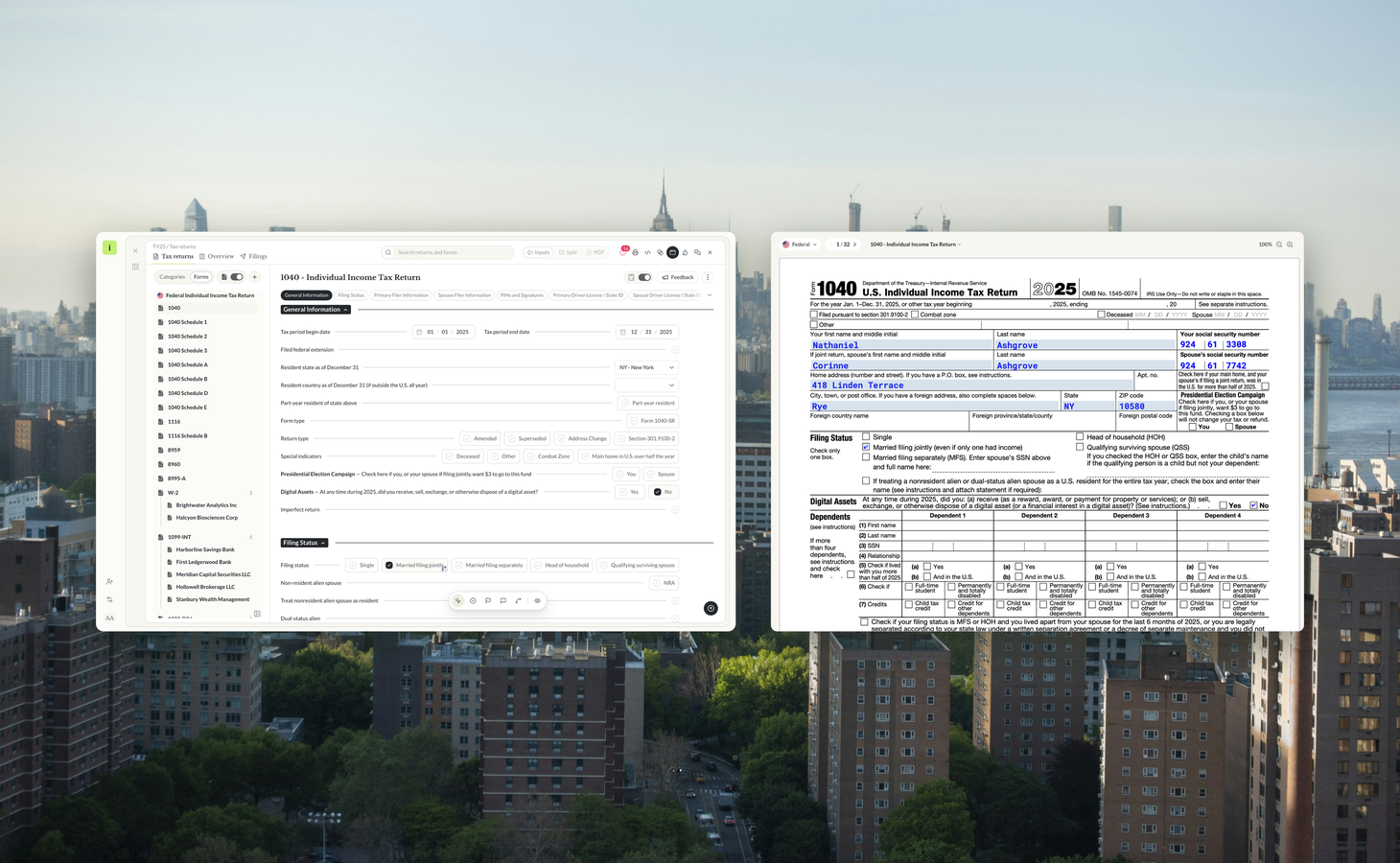
How to review a tax return on two screens in Instead

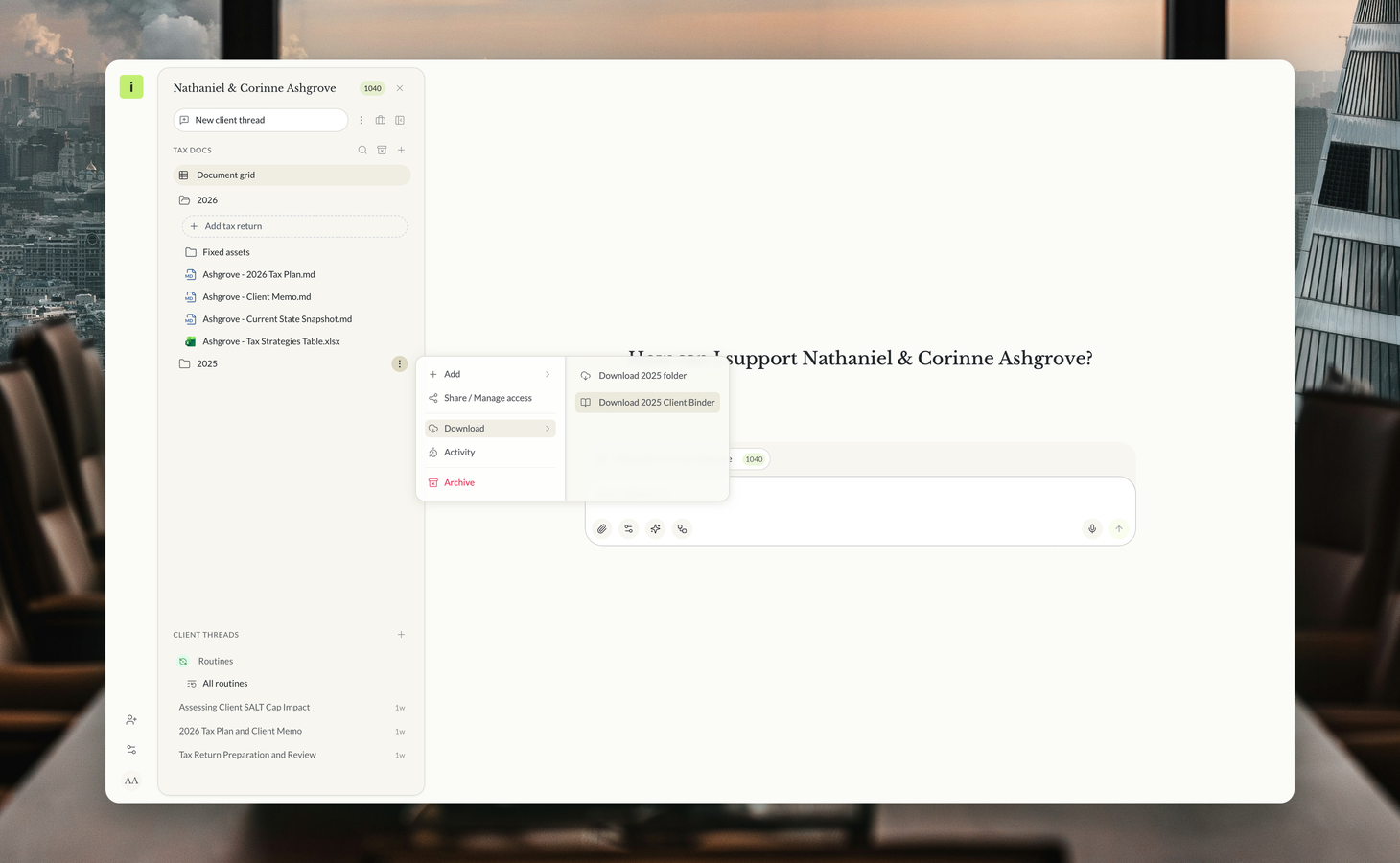
The tax year's review in one PDF

Who changed this number? Activity in Instead

Instead remembers every client


