
How to review a tax return on two screens in Instead
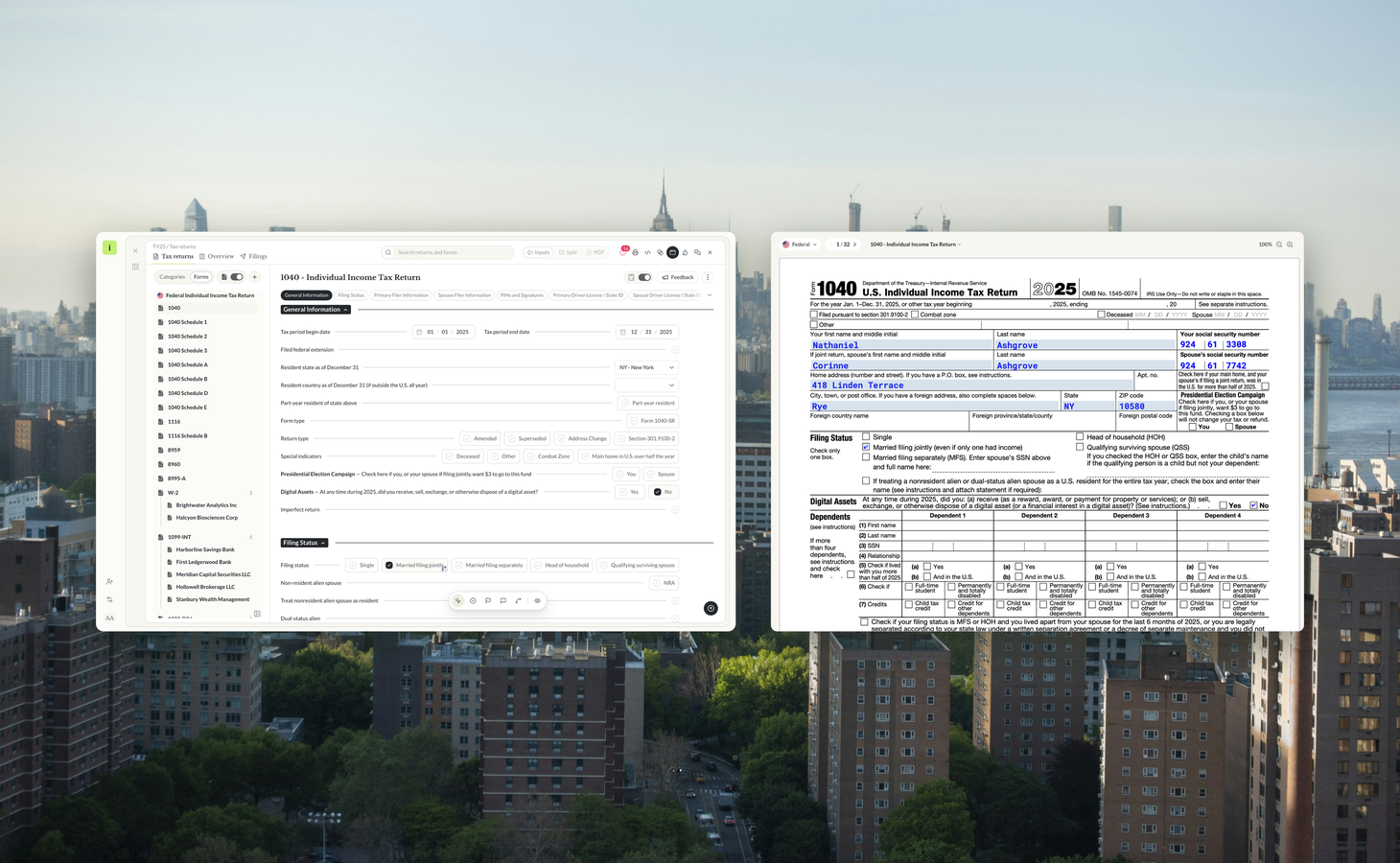
Reviewing a return means reading two things at once. The inputs and the PDF they produce. The return and the W-2 behind it. On one screen, those views take turns.
Review in a separate window is now available in Instead. Open the return PDF or the Related panel in its own window, and put it on your second screen.
Short answer: Instead lets you open the return PDF and the Related panel in their own browser windows. Put the inputs on one screen and the return or its source documents on the other. The windows stay in sync, so the PDF follows the form you open and a clicked trace opens its source at that box.
Why tax return review needs two views
A reviewer checks each input against the form it produces, and each number against the document it came from. That is two views at every step. When they share one screen, each gets half the room, or you switch back and forth and find your place again.
If you work with a second monitor, Instead can now use it. The view you check against goes on the second screen, and the view you work in stays on the first.
The four views in a tax return review
A review in Instead moves between four views.
- Inputs. The return inputs, form by form, where you enter and check the data.
- The return. The return PDF, the forms as they will be filed.
- Source documents. The W-2s, 1099s and other documents behind the numbers, in the Related panel.
- The workpaper. Your review workpaper, in the main window.
Review in a separate window gives two of these their own browser window. The return PDF and the Related panel. The inputs and the workpaper stay in the main window.
How to open the return PDF in its own window
- Open a client’s return in Instead.
- Click the window icon in the return toolbar. Its tooltip reads “Open the PDF in a new window.”
- The return PDF opens in its own browser window. Move it to your second screen.
- Keep working in the inputs in the main window.
While the PDF has its own window, the main window shows the inputs only, and the toolbar tooltip reads “PDF (in another window).” Close the PDF window when you are done.
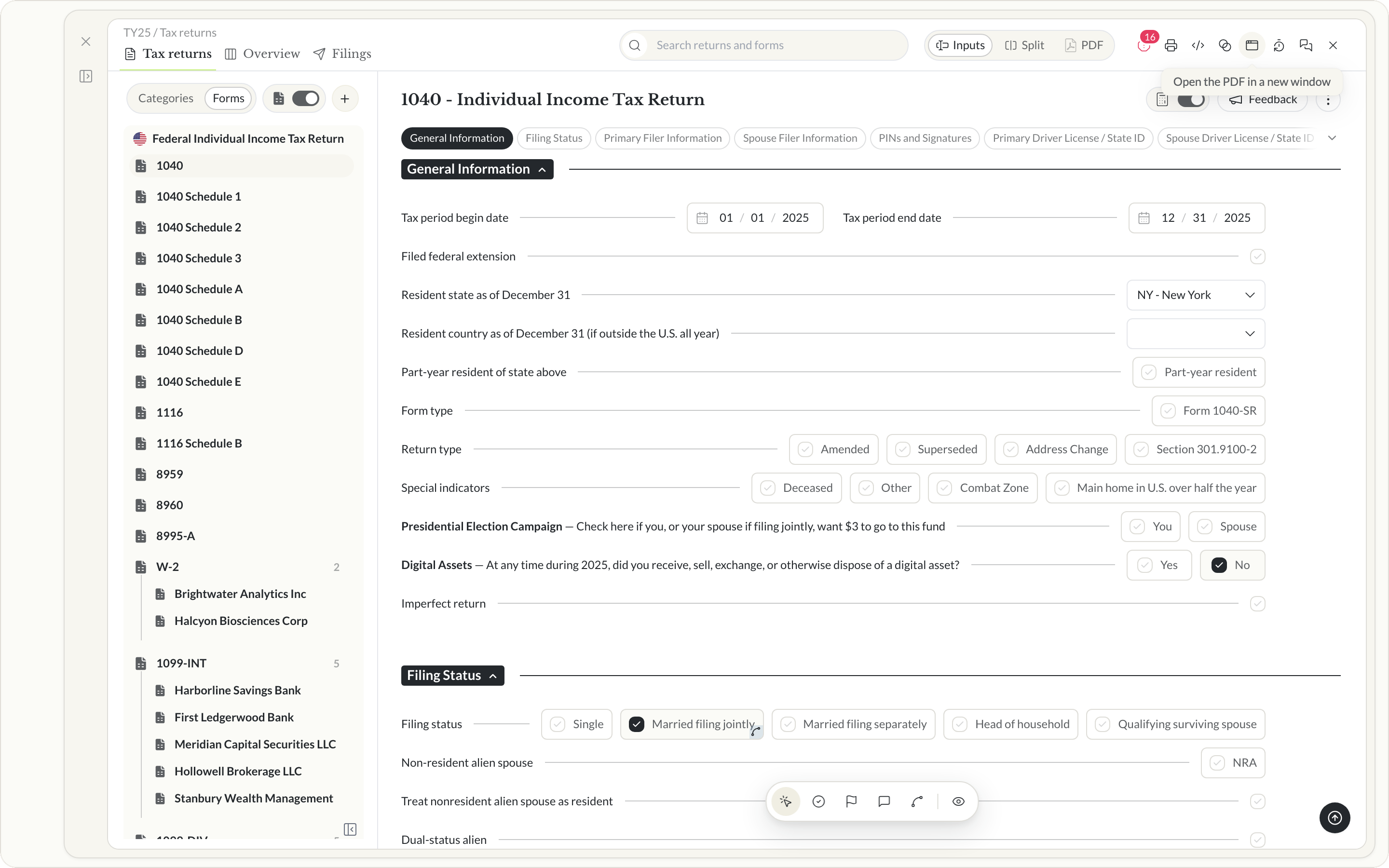 The window icon in the return toolbar
How the PDF window follows the form you open
Open a form in the inputs on screen 1, and the PDF window on screen 2 jumps to that form. Open Schedule B, and the PDF shows Schedule B. You do not scroll the PDF to find it.
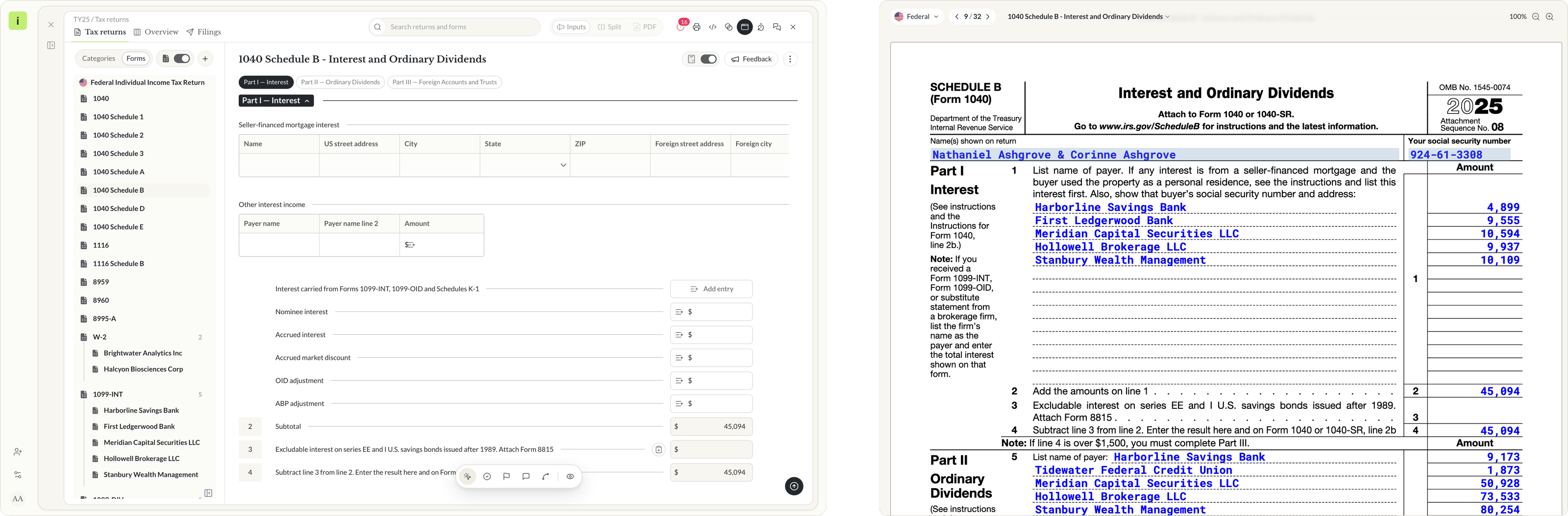 Inputs on screen 1, the same form in the PDF window on screen 2
Switch to the state return
Switch from the federal return to the New York return, and the PDF window follows. It shows the IT-201 for the same client.
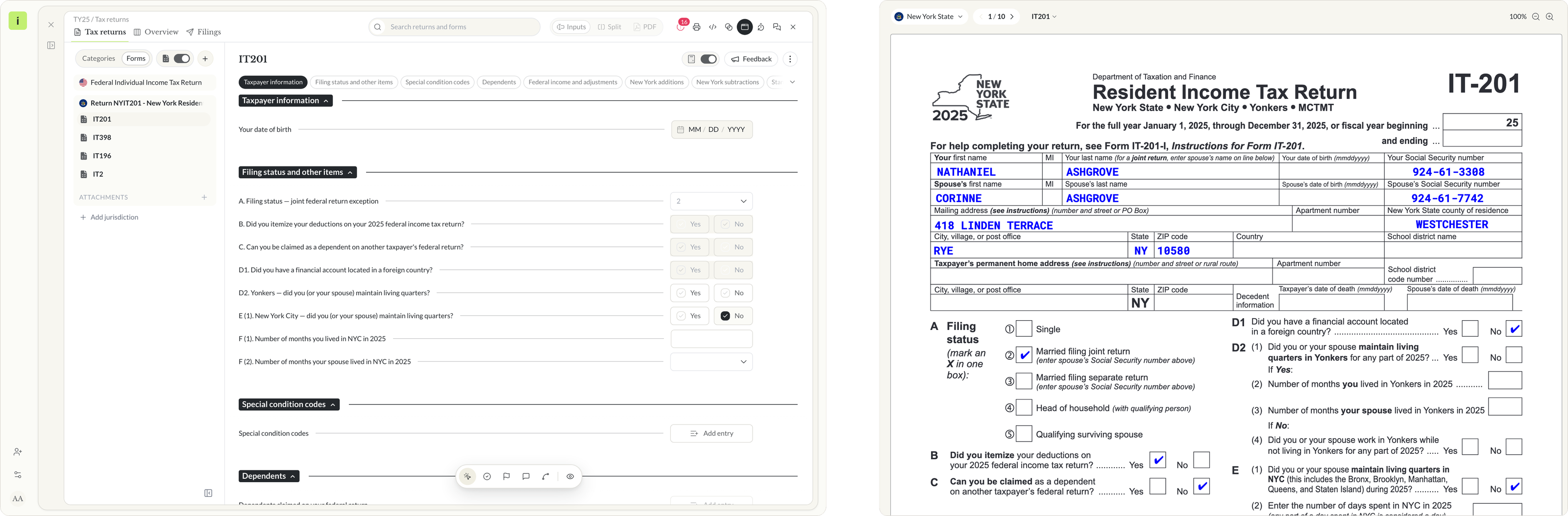 Switch to the New York return, and the PDF window follows
How to compare source documents to the return in a separate window
The Related panel shows the source documents behind the return. It can have its own window too.
- Click the window icon in the Related panel, titled “Open in a new window.” You can also choose “Open in new window” from a document’s menu.
- Move the Related window to your second screen.
- Click a trace on the return in the main window. The source document opens at that box on your other screen.
The Related window follows the field you click in the return. Click the next trace, and it opens the next source. Tie marks show in the Related window too, so you can see where on the document the number sits.
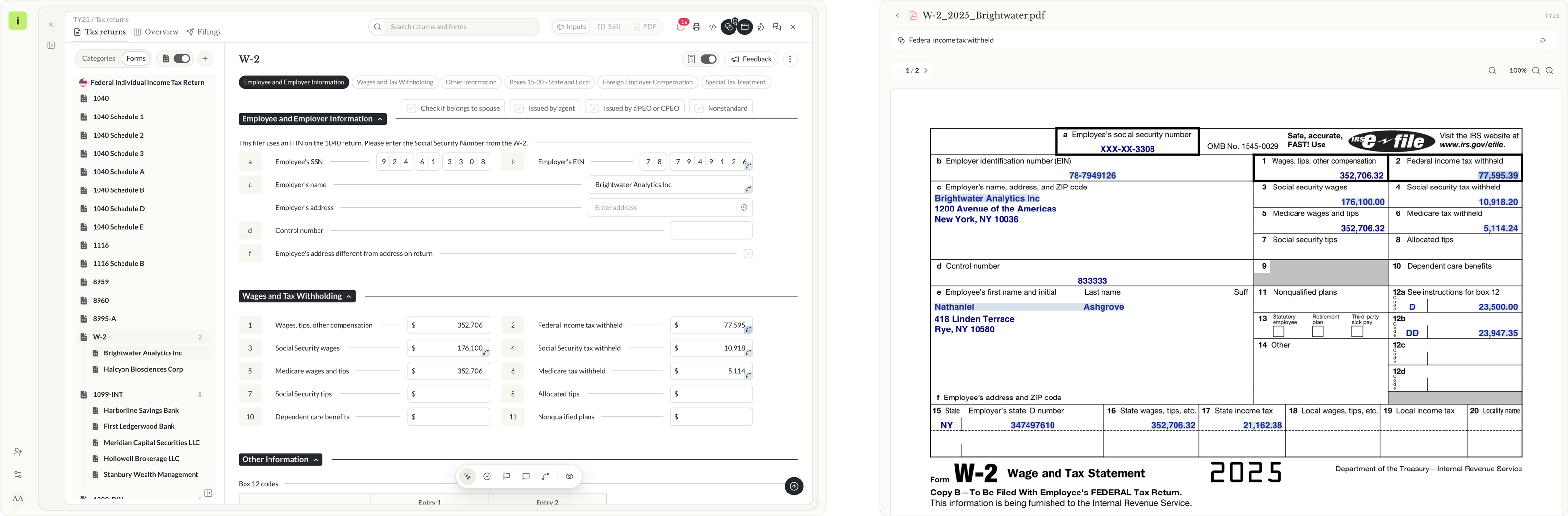 Click a trace on screen 1, and the source opens at that box on screen 2
Keep the workpaper in the main window
The workpaper opens in the main window, next to the client’s tax documents. The PDF window and the Related window go with the return, so they close when you open the workpaper. When you go back to the return, open them again from the return toolbar and the Related panel.
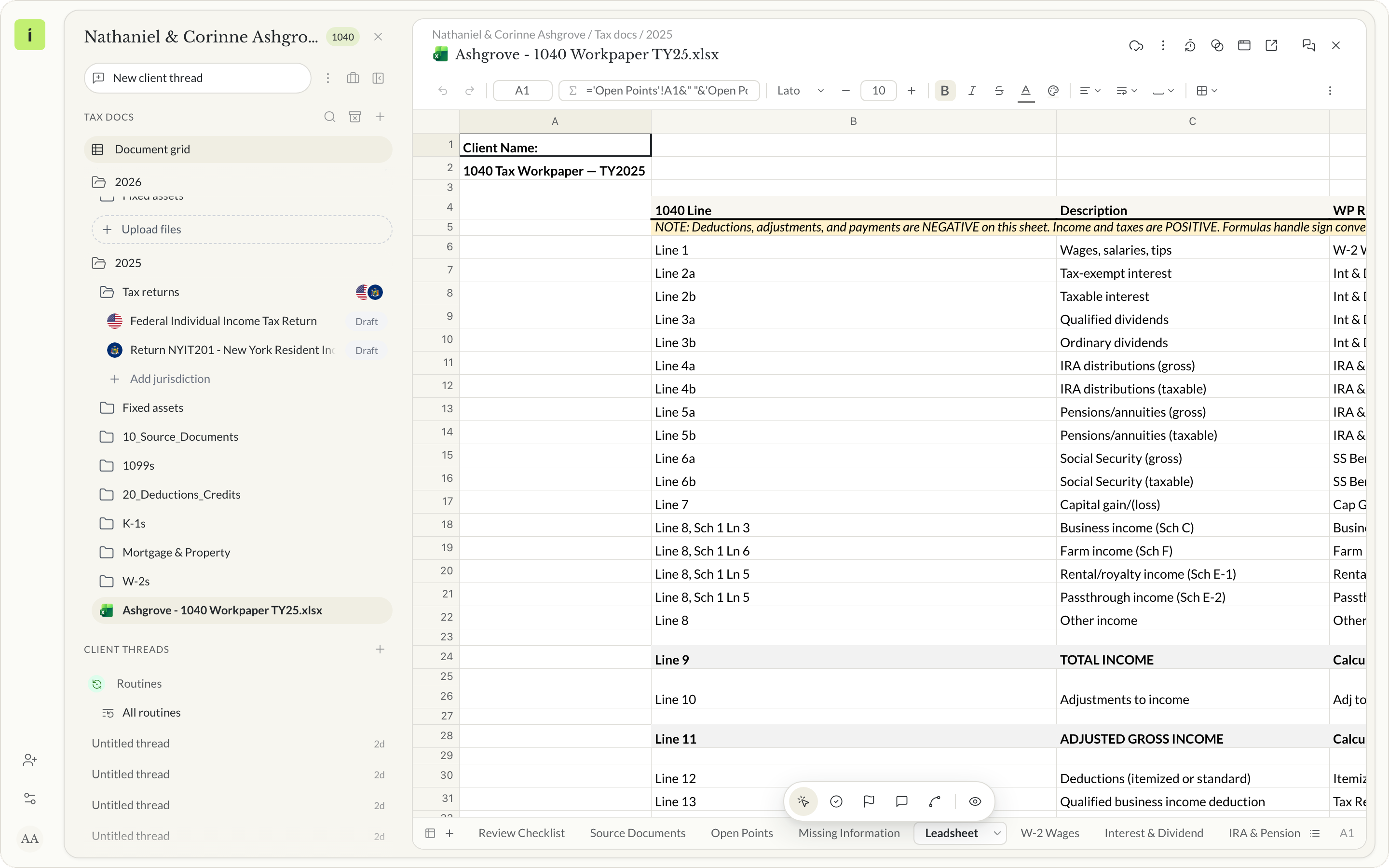 The workpaper in the main window
A two-screen tax return review setup, step by step
Two layouts cover most of a review. Each uses the main window on screen 1 and one separate window on screen 2.
Inputs on one screen, the return PDF on the other
Open the PDF in its own window. Work through the inputs form by form, and check each one against the form in the PDF as it follows you.
The return on one screen, its sources on the other
Open the Related panel in its own window. Click the traces on the return, one by one, and read each number at its box on the source document.
You can also open the PDF window and the Related window at the same time, one for each check.
How a second screen fits your tax return review process
Review in a separate window changes where each view sits, not how you review. The return, the traces and your review steps stay the same. Each reviewer chooses which window goes on which screen.
For how review works in Instead from start to finish, read how AI tax return review works in Instead, or see tax return review in Instead.
What to ask before you commit to tax return review software
A second screen only helps if the software uses it. These questions test that on your own returns.
Questions to ask before you commit:
- Can I put the return PDF on a second screen while I work in the inputs?
- Does the PDF follow the form I open, or do I scroll to find it?
- Does the PDF follow when I switch to the state return?
- Can I see the source document behind a number without leaving the return?
- Does a clicked trace open the source at that box?
Two screens make review easier to follow
Review means reading two things at once. On the Instead AI tax platform, the return PDF and the Related panel each open in their own window, and they follow what you open.
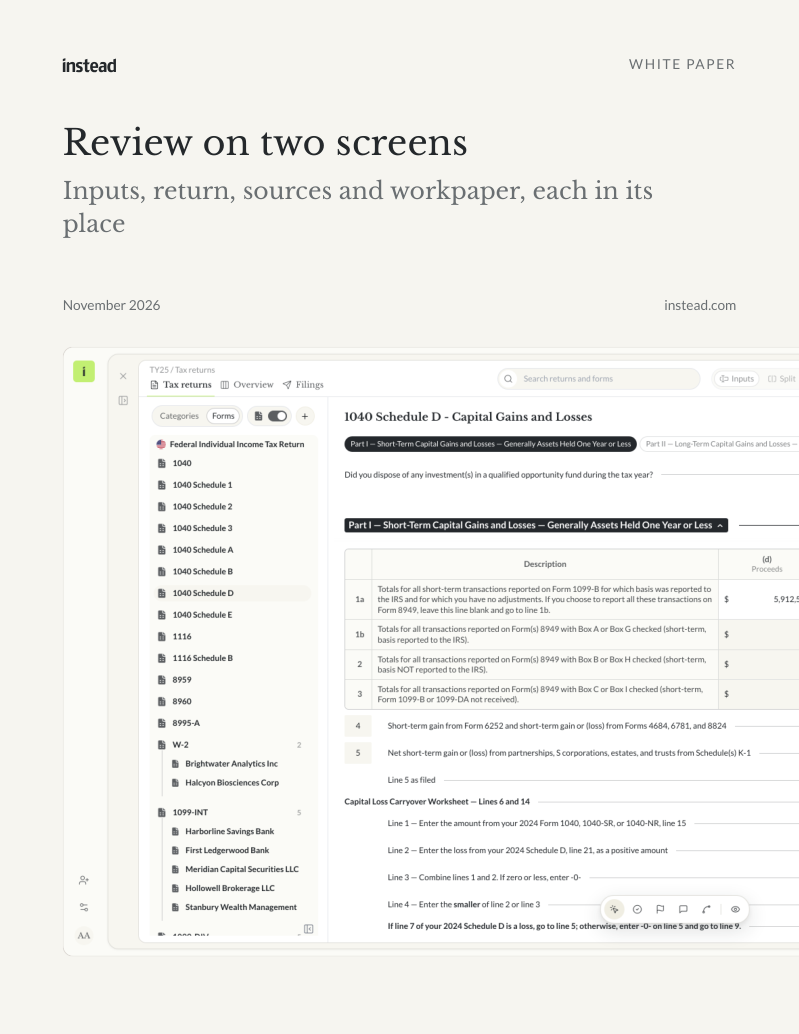
Free white paper
Review on two screens
Inputs, return, sources and workpaper, each in its place
The four views of a review, how the return PDF and the Related panel open in their own windows, and a two-screen setup step by step. Free PDF.
Download the white paperTo try it on your own returns, start your trial at instead.com.
Frequently asked questions
Q: How do I open the return PDF in a new window in Instead?
A: Open the return and click the window icon in the return toolbar. Its tooltip reads Open the PDF in a new window. The PDF opens in its own browser window, and you can move it to a second screen. The main window shows the inputs only until you close the PDF window.
Q: Does the PDF window follow the form I open?
A: Yes. When you open a form in the inputs, such as Schedule B, the PDF window jumps to that form. When you switch to the state return, for example the New York IT-201, the PDF window follows to that return too. You do not scroll the PDF to find the form.
Q: Can I open the Related panel in its own window?
A: Yes. Click the window icon in the Related panel, titled Open in a new window, or choose Open in new window from a document's menu. The Related panel opens in a separate window. It follows the field you click in the return, so a clicked trace opens the source at that box.
Q: Where should the workpaper go in a two-screen review?
A: The workpaper opens in the main window. The PDF window and the Related window go with the return, so they close when you open the workpaper. When you go back to the return, open them again from the return toolbar and the Related panel. Each reviewer chooses which window goes on which screen.
Q: Do I need two monitors to use it?
A: No. The PDF window and the Related window are browser windows, so you can also place them beside the main window on one large screen. A second monitor gives each view a whole screen, which is the setup the feature is made for. You choose which window goes where.
Q: Is Review in a separate window available for every firm?
A: Yes. Review in a separate window is now available in Instead, with nothing to set up. Open a return and look for the window icon in the return toolbar for the PDF, and in the Related panel for source documents. The return and your review steps stay the same as before.

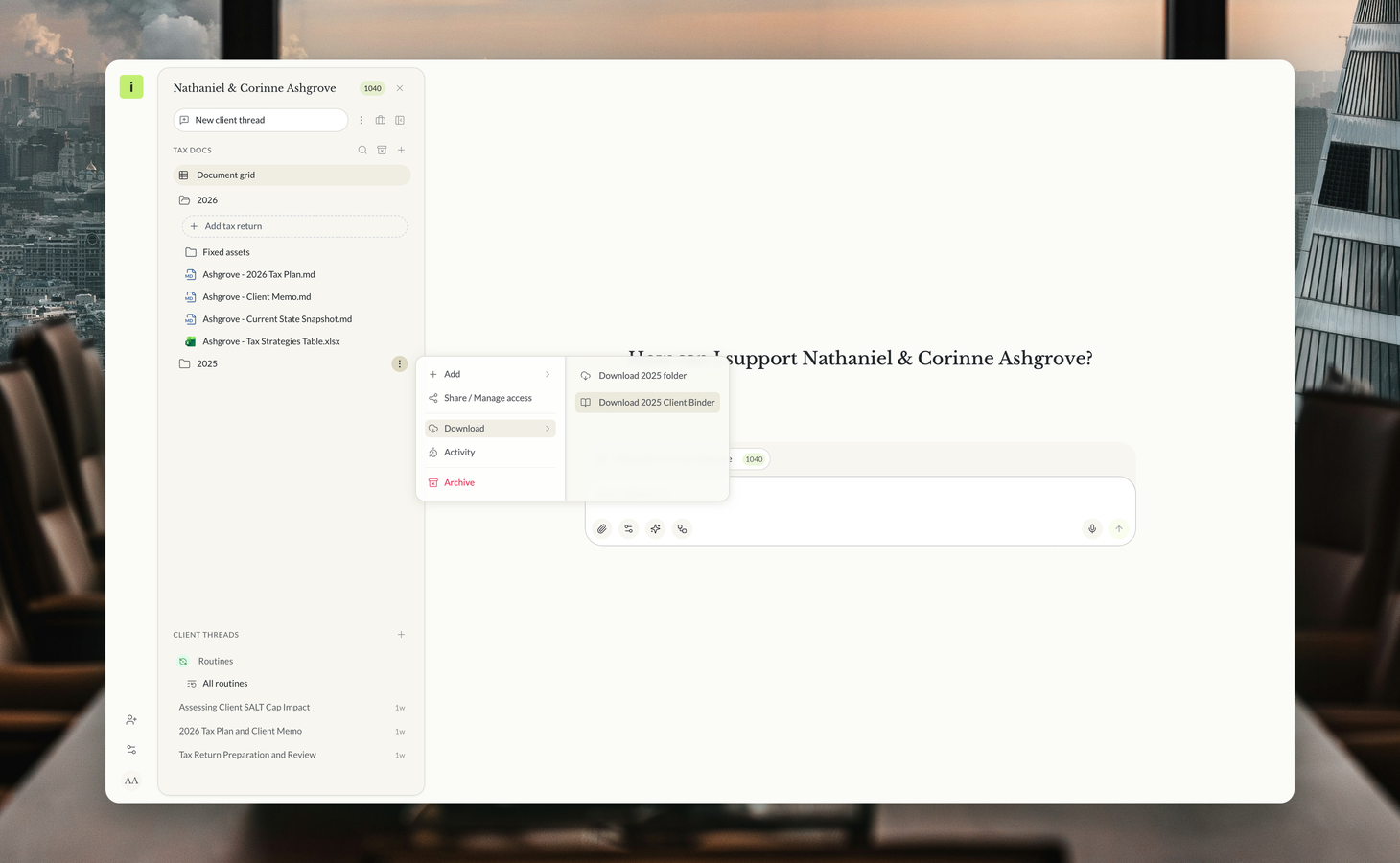
The tax year's review in one PDF

Who changed this number? Activity in Instead

Instead remembers every client


